
Live streaming has shifted from being a “nice-to-have” to a core content strategy for creators, podcasters, gamers, and businesses alike. As more platforms push live video, the challenge is no longer whether to go live, but where. Managing multiple platforms individually can quickly become overwhelming, which is where multistreaming tools come into the picture. Among those tools, Restream consistently appears at the top of the conversation. Marketed as an easy way to stream to multiple platforms at once, restream promises simplicity, reach, and flexibility. But does it actually deliver in real-world use?
To answer that properly, this restream review breaks down how the tool works, what it does well, where it struggles, and whether it makes sense for different types of creators.
Before jumping into features and pricing, it helps to understand why multistreaming matters in the first place.
Why Multistreaming Matters More Than Ever
Multistreaming simply means broadcasting the same live stream to multiple platforms at the same time. While the idea sounds straightforward, its impact is significant.
Most creators have audiences spread across different platforms. Some viewers prefer YouTube, others stay loyal to Twitch, while many professionals spend more time on LinkedIn or Facebook. Streaming on just one platform forces you to choose who gets access in real time.
This is where multistreaming becomes valuable. Instead of fragmenting your efforts or re-uploading recordings later, multistreaming allows you to meet your audience where they already are. It also increases discoverability, since going live on multiple platforms boosts your chances of being surfaced in feeds and notifications.
With that context in mind, let’s look at how restream positions itself as a solution to this problem.
What Is Restream and How Does It Work?
Restream is a multistreaming platform that lets users broadcast live video to multiple destinations simultaneously from a single setup. Founded in 2015, it initially focused on gamers but quickly expanded to support podcasters, businesses, educators, and professional creators.
At its core, restream acts as a central hub. You stream once, and the platform distributes that stream to connected channels such as YouTube, Twitch, Facebook, LinkedIn, TikTok, and more.
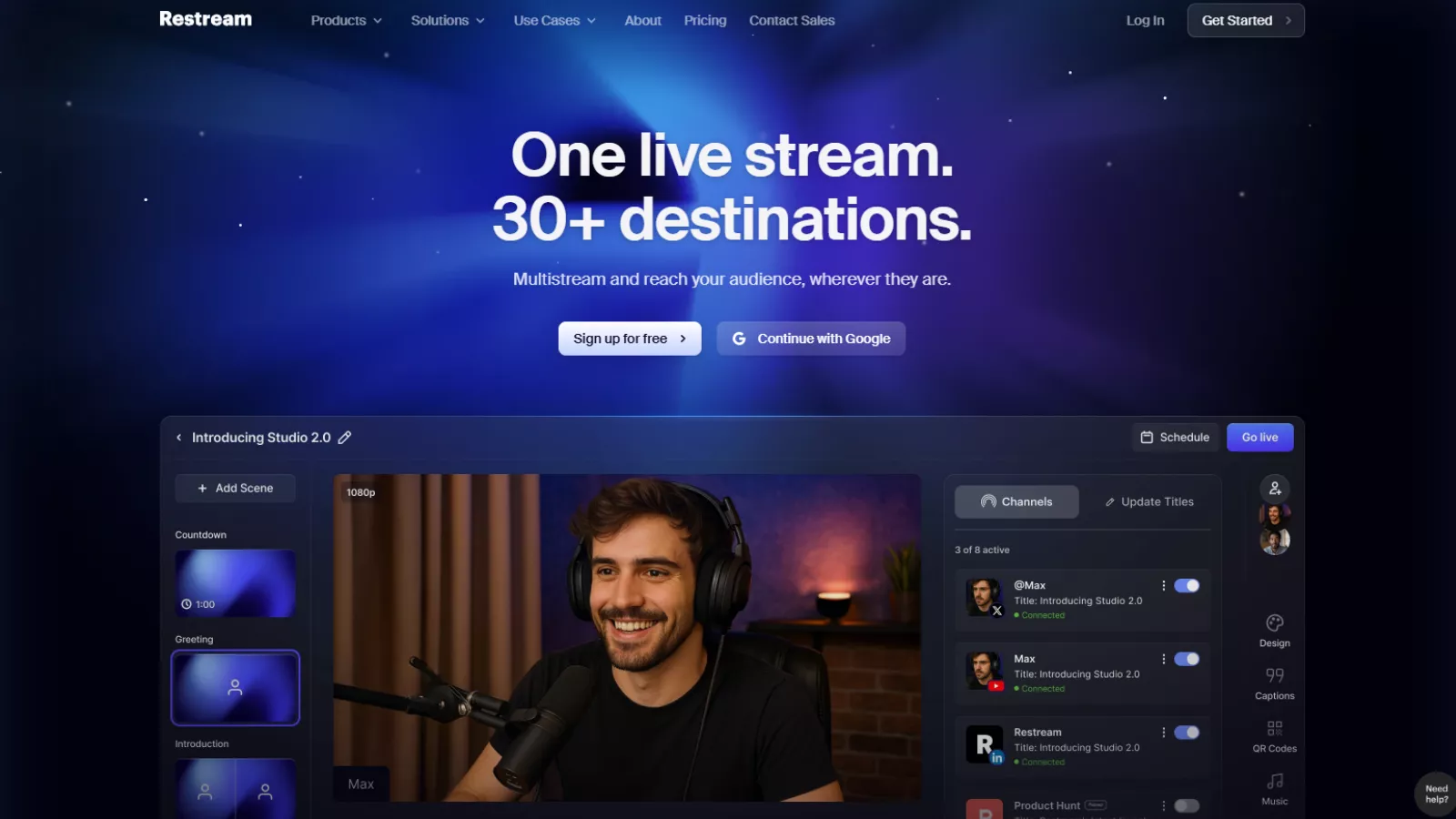
The experience is designed to be simple. After signing in, users can either stream directly from the browser using Restream Studio or connect external software like OBS or Zoom. From there, selecting destinations and going live is handled through a clean dashboard.
Now that we understand what restream does at a high level, let’s explore how it actually feels to use.
Ease of Use and Interface Experience
One of the most consistent points mentioned in any restream review is how easy it is to get started. The dashboard is minimal, clear, and intentionally avoids overwhelming users with technical settings.
Creating a new stream is straightforward. You click “New Stream,” choose whether to enter the studio or use an external tool, and you’re guided step by step into the live environment. For beginners, this reduces the friction that often comes with live streaming tools.
Inside Restream Studio, layout changes, screen sharing, camera switching, and adding guests all happen with a few clicks. Scene changes can be done while recording or live, which is particularly helpful for creators who like to switch between talking-head views, presentations, or gameplay.
This ease of use sets the foundation, but the real value lies in the features that power those workflows.
Core Features That Define Restream Software
Restream software focuses on removing technical barriers while still offering enough flexibility for serious creators. Its feature set reflects that balance.
Browser-Based Live Studio
Restream Studio allows users to go live directly from their browser without installing additional software. This is especially useful for podcasters, interview hosts, or business users who want a reliable setup without complex configurations.
Scene and Layout Control
Users can create multiple scenes, switch layouts during a stream, and mix screen shares with camera views. This works well for reaction videos, tutorials, and gaming content.
Guest Invitations
Inviting guests is as simple as sending a link. Guests can join without downloads, making collaboration fast and accessible.
Unified Chat
One of restream’s strongest features is its unified chat. Messages from all connected platforms appear in one feed, allowing creators to respond in real time without juggling multiple windows.
On-Screen Engagement Tools
Live comments can be displayed on screen, along with banners, lower-thirds, background music, sound effects, and even QR codes that link to external pages.
With these features in place, restream positions itself as more than just a distribution tool. It becomes a live production environment. To understand how accessible these tools are, we need to look at what’s included for free.
Free Plan: What You Get Without Paying
Restream offers a free plan, which makes it appealing for creators who want to test multistreaming without committing upfront.
The free plan includes:
- Streaming to two destinations simultaneously
- Access to Restream Studio
- Unified chat across platforms
- Up to five on-screen participants
- Unlimited stream duration
However, there are limitations. Streams include a Restream watermark, advanced customization options are restricted, and stream stability may not be as consistent as paid tiers. Some users also report occasional stream drops on the free plan, especially during longer sessions.
While the free plan is functional, it’s clearly designed as an entry point rather than a long-term solution. That naturally leads us to the paid offerings.
Restream Pricing: Paid Plans Explained
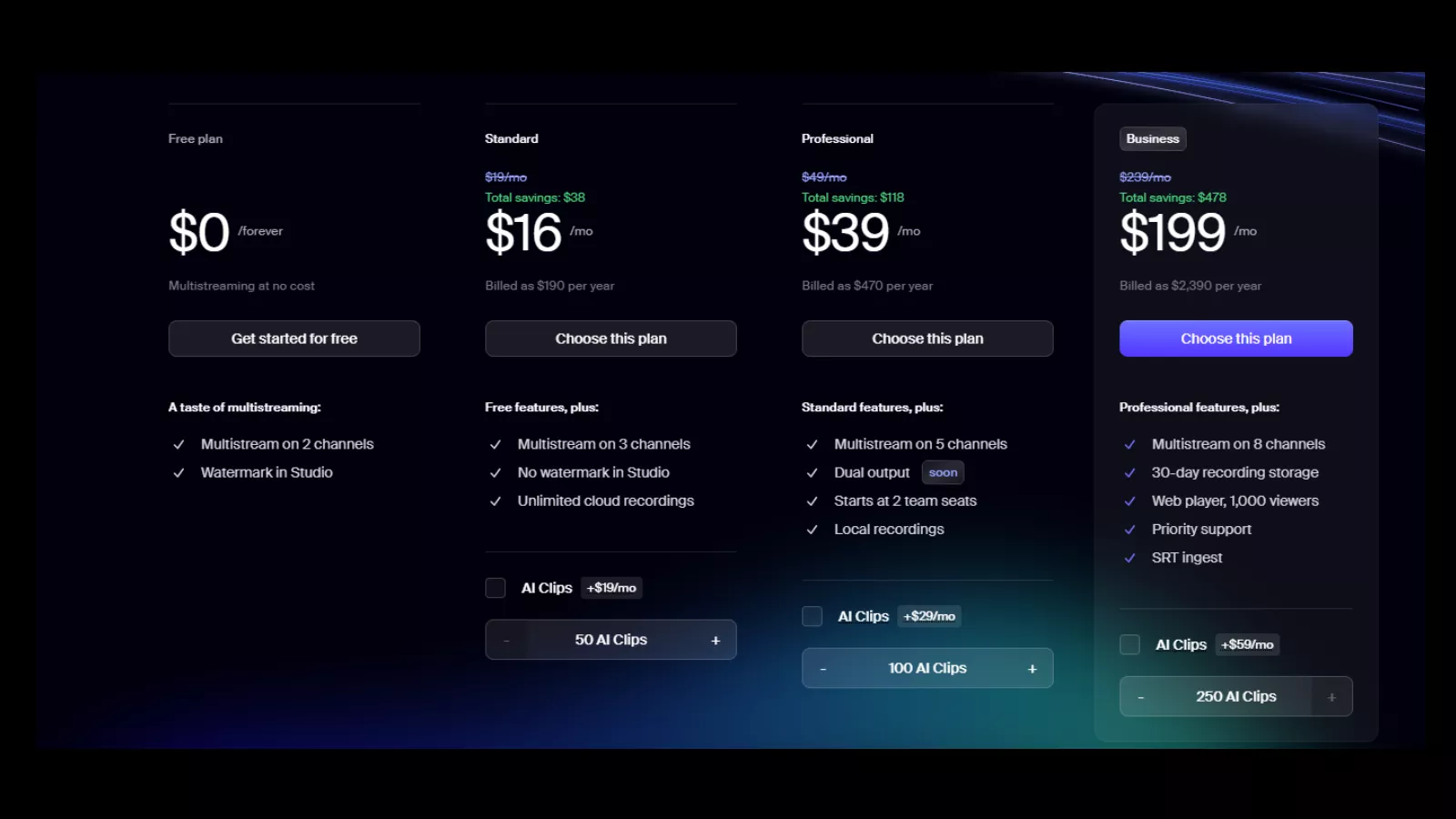
Free Plan ($0 forever)
The Free plan is best viewed as a trial-level option rather than a complete solution. It allows multistreaming on up to two channels, which is useful for creators who want to test simultaneous streaming without upfront cost. However, the Studio watermark is mandatory, making it less suitable for professional or brand-focused use. There’s no advanced control, limited scalability, and fewer production features overall. Still, for beginners experimenting with live streaming or individuals validating a workflow before upgrading, the Free plan provides just enough functionality to understand the platform’s core value without financial commitment.
Standard Plan ($16/month, billed annually)
The Standard plan is ideal for solo creators or small teams ready to move beyond basic streaming. It removes the Studio watermark and expands multistreaming to three channels, offering a cleaner, more professional output. Unlimited cloud recordings add real value, especially for creators who repurpose live content. This plan strikes a balance between affordability and essential features, though it lacks advanced outputs and collaboration tools. The optional AI Clips add-on can enhance content reuse but increases cost. Overall, Standard works well for independent streamers who want consistent quality without needing team-based workflows.
Professional Plan ($39/month, billed annually)
The Professional plan is designed for growing teams and creators who need more flexibility and production control. It supports multistreaming on up to five channels and introduces local recordings, which improve reliability and content ownership. Starting at two team seats, it’s better suited for collaborative environments. The upcoming dual output feature signals future scalability. With higher AI Clips limits available as an add-on, this plan supports content repurposing more efficiently. While pricier, it offers a strong middle ground for semi-professional teams seeking better control, collaboration, and stream distribution without moving into enterprise pricing.
Business Plan ($199/month, billed annually)
The Business plan targets organizations and high-volume broadcasters with advanced streaming needs. It allows multistreaming across eight channels, includes 30-day recording storage, and supports up to 1,000 viewers via the web player. Features like SRT ingest, priority support, and expanded AI Clips make it suitable for professional live events, webinars, and large-scale content distribution. This tier emphasizes reliability, performance, and audience scale rather than experimentation. While the cost is significantly higher, it’s justified for businesses that require stability, viewer capacity, and dedicated support for mission-critical live streaming operations.
Performance, Quality, and Reliability
In terms of performance, restream generally delivers stable streams, particularly on paid plans. The platform supports up to 1080p resolution and uses a global server network to manage distribution.
Stream quality can adjust automatically based on internet conditions, with manual controls available for optimization. This helps prevent sudden drops in quality during live sessions.
One important consideration is hardware usage. Because restream handles multiple outputs simultaneously, it can be demanding on your computer, especially during gaming or screen-heavy streams. This isn’t unique to restream, but it’s something creators should factor into their setup.
Overall, reliability improves noticeably once users move to paid plans, which reinforces the idea that the free tier is best used for testing rather than consistent broadcasting.
Performance is only part of the equation, though. Engagement and analytics play an equally important role.
Audience Engagement and Analytics Tools
Restream includes built-in analytics that provide insights into stream performance. These metrics include:
- Live viewers
- Peak viewership
- Chat activity
- Platform-specific performance
These insights help creators understand where engagement is strongest and how audiences behave across platforms.
The unified chat system also plays a major role in engagement. Being able to respond to comments from multiple platforms in one place encourages real-time interaction, which is one of the main reasons creators choose live video.
By combining analytics with engagement tools, restream supports both content delivery and audience growth. But how does it compare to similar platforms?
Restream vs Other Multistreaming Tools
When compared to tools like StreamYard, OBS Studio, and Streamlabs, restream holds its own in several areas.
Compared to StreamYard, restream allows streaming to more platforms, even on free plans, though StreamYard offers slightly more overlay customization.
Against OBS Studio, restream is far easier to use. OBS offers deep control but requires setup, plugins, and technical knowledge. Restream prioritizes accessibility.
When compared to Streamlabs, restream focuses more on multistreaming and production, while Streamlabs leans into monetization tools like donations and alerts.
These comparisons show that restream is best suited for creators who want reach and simplicity without sacrificing essential production features.
Still, no tool is perfect, which brings us to the pros and cons.
Pros and Cons of Using Restream
Pros
- Simple and intuitive interface
- Strong multistreaming capabilities
- Browser-based studio with no downloads
- Unified chat and engagement tools
- Suitable for creators, podcasters, and businesses
Cons
- Pricing similar to competitors
- Free plan has limitations and occasional instability
- Can be demanding on system resources
- Some layout changes may feel slightly delayed
These trade-offs are worth considering, especially depending on your content type and hardware setup.
Who Should Use Restream?
Restream is a good fit for:
- Podcasters hosting live shows
- Gamers streaming across platforms
- Businesses running webinars or events
- Educators and interview-based creators
It may be less ideal for users who need heavy video editing or advanced production workflows that require full control over every element.
Understanding this helps set realistic expectations, which is essential before making a decision.
Popular Alternatives to Restream
StreamYard – A browser-based live streaming tool known for its simplicity, branding options, and smooth guest management.
OBS Studio – A free, open-source broadcasting software offering full control over scenes, audio, and video for advanced users.
Streamlabs – A creator-focused streaming platform that combines multistreaming with built-in monetization tools like alerts and donations.
OneStream Live – A cloud-based multistreaming tool that supports pre-recorded and live content across multiple platforms.
vMix – A professional-grade live production software designed for high-end broadcasts with advanced mixing and switching capabilities.
Final Verdict: Is Restream Worth It?
After analyzing its features, performance, and pricing, restream proves to be a reliable and accessible multistreaming solution. It doesn’t try to overcomplicate live streaming, and that’s one of its strongest qualities.
The free plan offers a solid introduction, while paid plans unlock the stability and customization most serious creators need. While it’s not the cheapest option, the balance between ease of use and functionality makes it a practical choice for many.
If your goal is to expand reach, simplify live streaming, and engage audiences across platforms without technical headaches, restream is worth considering.
Frequently Asked Questions
Does the platform support simultaneous recording and streaming?
Yes, paid plans support recording while live streaming. Higher tiers allow local and cloud recordings simultaneously, improving backup and content reuse.
Is there a limit on streaming duration per session?
There are no strict session time limits mentioned on paid plans. However, recording storage limits depend on the selected tier.
Can I upgrade or downgrade my plan anytime?
Yes, users can change plans as their needs grow. Upgrades take effect immediately, while downgrades usually apply at the next billing cycle.
Are AI Clips mandatory with paid plans?
No. AI Clips are optional add-ons across paid tiers, allowing users to control costs based on content repurposing needs.
Does the platform integrate with third-party tools?
It supports common streaming destinations and workflows, but deep third-party integrations are more limited compared to enterprise streaming platforms.
Is the pricing per user or per workspace?
Pricing is primarily plan-based, with team seats included only in higher tiers like Professional and Business.